Opens in any DAW. Originals untouched.
Everything is written to a new folder: the WAVs, all the same length and lined up from the same start, named and numbered the way your template expects, a project for Reaper and another for Studio One, Bitwig and Cubase, and a report with every decision and its reason. Your library is never touched.
In the app: Render (Ctrl+R), the Output column and the Output names window.
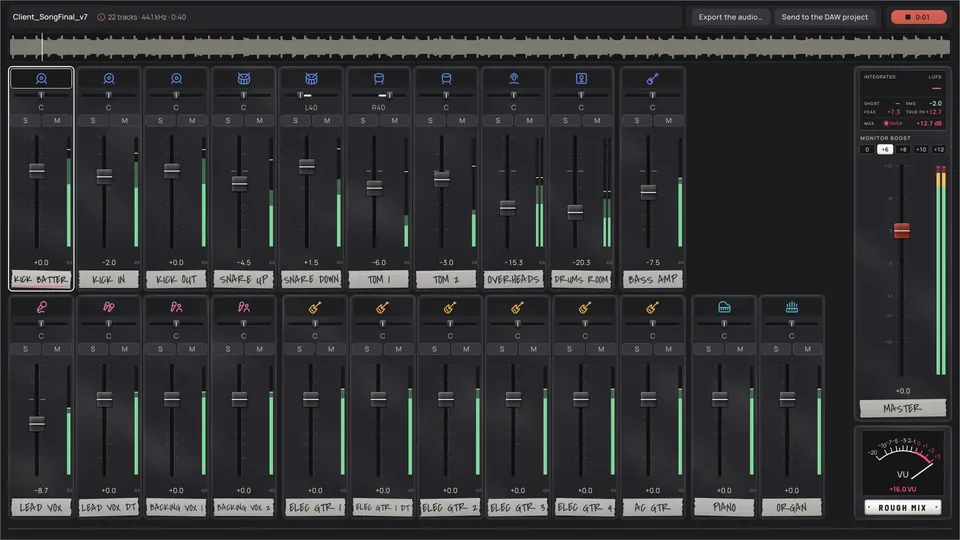
One folder, ready to open.
A subfolder with the session's name, inside the folder you choose. Move it anywhere: the Reaper project finds its WAVs by relative paths. The DAWproject uses full paths (Cubase needs them), so if you move the folder, the DAW asks where they are.
- Audio: the WAV of each track.
- Reference: the client's mix, if there is one, muted, and the click if you ask for it.
- Originals: a copy of the originals if you ask for it, sample for sample when the sample rate doesn't change.
- Presets: the presets of the FX Chains you send live to the DAW.
- Report: report.html, report.json, plan.yaml and the Rough mix.
Folders, colours, tempo and markers, already in.
Tracks with name and colour in folders by family, the tempo and its changes, the client's markers and the reference mix, muted. The key goes in the Reaper project's notes.
| DAW | What it gets |
|---|---|
| Reaper | A .rpp project, with markers, tempo changes, faders and pan, the gate as Volume (pre-FX) automation and Strip Silence as items |
| Studio One, Bitwig, Cubase 14+ | A .dawproject, with markers, tempo changes, the gate as automation, clips, faders and, if you want, the FX Chains live. Cubase brings in the tracks, folders, colours, faders and clips, but not yet the automation or the tempo: for Cubase, print the gate into the audio |
| Pro Tools, Logic, Ableton Live | Drag the WAVs in: they line up from the same start and land in your template's order. The faders, from the mix sheet of the report, once you've made a Rough mix |
Non-destructive, if you want it.
- The gate as automation (on by default): the WAVs come out without the gate, and the gate goes in as volume automation you can retouch or delete in the DAW. On a track with a printed FX Chain, the gate is printed, because it goes before the chain.
- FX Chains live in the DAWproject: your plugins open in Bitwig and Studio One with their settings, instead of processing the audio (in Cubase, check it in your version). A chain with Emphasis or with Mix below 100 % is printed anyway: that part is TapeLeader's. Their presets are saved too, for Reaper.
- A copy of the originals in a muted folder of the project, just in case.
- Strip Silence as clips: the WAVs whole and each piece a clip you can stretch; or written in the audio, for any DAW; or both.
Your names, your order.
A format with markers, and both the Output names window and the Output column show at once how each track will be called. Write any name by hand; it wins over the format. Or write how you'd call two or three tracks, and TapeLeader finds the format that gives exactly those names.
| Marker | What it writes | Example |
|---|---|---|
| {n} | Number, with leading zeros | 03 |
| {nombre} | Original name without its numbering | SnareUp |
| {limpio} | The clean name | Snare Up |
| {tipo} | Type of track | Snare |
| {version} | Version of the type; nothing if it has none | Top |
| {familia} | Family | Drums |
| {original} | The original name as it is | 03_SnareUp |
| {sesion} | Name of the session | SONG_FINAL_v7 |
| {plantilla} | The name of its slot in your mix template | Snare Top |
Your mix template.
- Paste the list of tracks of your DAW template, or import it from a Reaper project, a DAWproject or a .txt. TapeLeader guesses the type of each slot from its name.
- Tracks are placed by type and mic position (In/Out, Top/Bottom, DI/Amp, L/R) and by number (Tom 1, Tom 2). Several tracks for one slot go together; tracks without a slot go at the end, by family.
- The WAVs come out numbered in your template's order, ready to drag onto it in Pro Tools, Logic or Cubase; the numbers run on without gaps, so a slot this session doesn't fill isn't skipped. The DAW projects come out in that order too.
WAVs that say what they are.
- Sample rate
- The original, or converted to 44.1, 48, 88.2 or 96 kHz with soxr at its highest quality. A session with mixed rates comes out at one.
- Bits
- 32-bit float by default: it never clips. 24 and 16 bit with TPDF dither; if anything passed 0 dBFS, it's clipped and you're told.
- BWF
- Time stamp, the session starting at 0 in the DAW, and the loudness of the output: integrated LUFS, range, true peak, momentary and short-term maxima.
- iXML
- Project, original name, channel names, instrument, tempo and song title, and TapeLeader's data: type, group, colour and every operation.
- LIST/INFO
- Title, album (the session name) and comments: what Windows Explorer shows.
- ACID
- Optional, in the settings file: the tempo, for the DAWs that read it.
- RF64
- Files over 4 GB switch to it on their own.
- Click
- A tick on each measured beat, muted in the project, if the tempo in use is the measured one and steady.
Every track, in the same order.
At render each track goes through these steps, in this order, the same path you heard in BEFORE and AFTER.
- Common format
- Hum
- Align
- DeBleed
- HPF
- DC
- Gate
- FixEQ and FixReso
- Strip Silence
- Gain
- Ultrasonic LPF
- Clipper
- FX Chain
- Final level
- Edge fades and WAV
And a report of all of it.
- report.html (in Spanish for now): the key and the markers, and a table with each output, its type, channels, gain, LUFS, true peak and waveform, what was done to it and why.
- report.json and plan.yaml: the same, for machines.
- When it's done, it offers to open the Rough mix or the output folder.
[MANUAL: chapters 13, 14 and 15] Output names, format and metadata, and the render, with every option, are in the manual.