Hear it together before you render.
Some things can't be decided track by track: whether the kit sums with the overheads, whether the bass and the kick go together, whether a gate shows with everything else playing. The miniMix is a small desk with the tracks you pick, prepared, on a loop of the song. After the render, the Rough mix plays it all and takes your faders to the DAW.
In the app: the miniMix and Rough mix buttons, and the miniMix column of the main window.
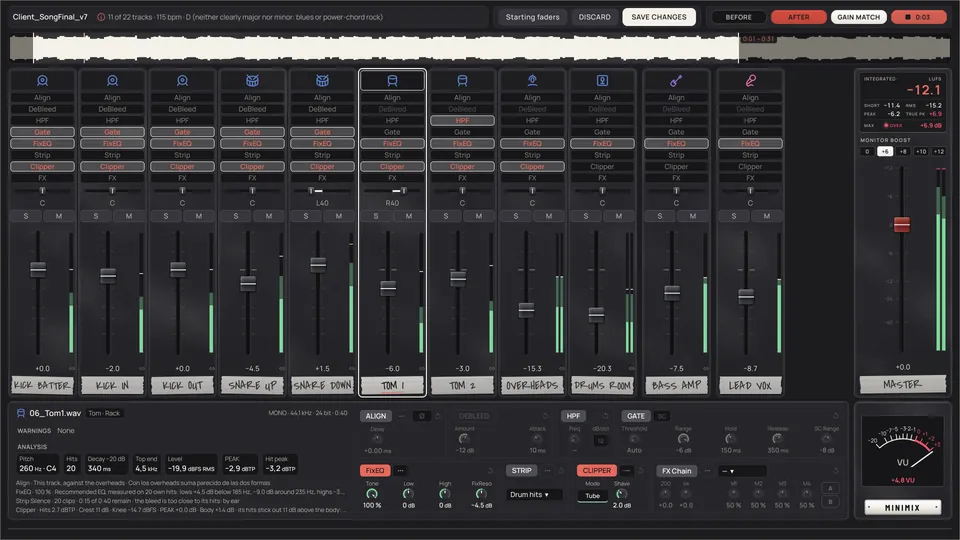
Not to mix. To check.
Before the render the whole song isn't processed: a half-minute stretch is prepared in seconds, and it's made for about a dozen tracks playing on it together.
- The tracks that matter, already in
By default the kicks, snares, hi-hat, toms, overheads and one room, the bass and the lead vocal. Add or take any with the switch in the miniMix column; it doesn't change what renders.
~12tracks it's made for: it's a check, not a mix. - Where the song lifts
The stretch it proposes straddles the point where the song lifts, usually the end of a verse and the way into the chorus. With a measured tempo it starts on a beat and lasts whole bars (of four beats, for now).
30 sthe stretch, 4 s to 2 minutes if you drag its edges. - Everything moves while it plays
Fader, pan, solo, mute, polarity and milliseconds are heard as they move. A filter, a gate or an FX Chain re-prepares that one track in the background and it comes in without a click and without stopping the music.
0 stopsthe music doesn't stop for a change. - The same cards as PROCESS
Pick a channel and its cards come up below, with its data and why each process carries what it carries. What you set here is that track's, and goes to the render.
8cards: Align, DeBleed, HPF, Gate, FixEQ, Strip, Clipper and FX Chain. - A against B, at the same level
B is each track with its whole plan, as it will render. A is the originals with the same faders and pan, each raised or lowered to the level of its B, so you compare what the processes do, not the volume.
A / Bwith GAIN MATCH on by default.
A real desk, with names on masking tape.
One channel per track. With few tracks the channels are wide; as you add, they narrow. On a laptop, the processes pair up to leave the fader its travel.

- The type
- On top, in the colour of its family. A click there picks the track and its cards come up below.
- Align · DeBleed · HPF · Gate · FixEQ · Strip · Clipper · FX
- Lit, the track has it. DeBleed only on the close mics of kick, snare and toms. A click turns it on or off, the same box as in the main window. Align says Ø, ms or φ.
- Pan · S · M
- Never solo and mute at once on one channel. Neither is saved here.
- Fader and meter
- +12 dB to −∞, with a ribbed cap. Light bar the peak, solid bar the RMS; stereo tracks get two bars.
- LINK
- The little chain links a channel with the one on its right, and their faders move together by the same dB, each from where it is. With Shift, a whole run at once; with Alt, one fader alone without unlinking.
- The name
- At the bottom, in marker on masking tape. A click on the tape picks the track without risk of moving a fader.
- SAVE CHANGES · DISCARD
- What you touch is heard and applied at once. Save keeps it all for the render; Discard leaves the session as it was when you opened it.
A first balance, the moment it plays.
The first time you open the miniMix of a session, with every fader at 0, as soon as the stretch is ready the faders move by themselves into a first take of a mix. It isn't a mix: it's a place to start retouching by ear.
- The mics of each instrument against each other: the Out a little under the In, the bottom well under the top, the DI under the amp.
- The kit built from the overheads: kick and snare reinforcing on their hits, the room and the hi-hat under, the toms a little under the snare, the second room out.
- Kit, bass and backing vocals in proportion with the lead vocal, and the master at about −6.5 VU (−24.6 dBFS RMS). What isn't drums, bass or vocals gets its fader halfway up (−7.4 dB), for you to place.
- The figures come from an engineer's own mixes of real sessions. Starting faders does it again whenever you want; if you'd already moved a fader, it touches nothing on its own.
Drawing: the shape of a starting balance. The app works out each fader from your session.
How much reaches the master, at a glance.
No limiter: if it goes over, you see it and you hear it.
- The readout
- Like the screen of a box: INTEGRATED loudness large, then SHORT, RMS, PEAK and TRUE PK, in red over 0, and MAX with its OVER light. A click resets it.
- MONITOR BOOST
- Desk keys, 0, +6, +8, +10 and +12, lit amber: hear the mix louder and see how much signal arrives. It never goes to the DAW.
- VU
- A needle from −20 to +3 VU like a real one, with real inertia: 0 VU = −18 dBFS RMS.
- Pan law
- −3 dB (the default, like Cubase and Pro Tools) or 0 dB (Reaper's default), in Settings ▾ → Pan law. It isn't written into the DAW projects yet: set the same law there.
Five minutes of faders, then into the project.
After the render, the Rough mix plays the rendered WAVs, whole: the same desk without processes, one channel per track, with the faders and pan you left in the miniMix. Tracks whose FX Chain goes live to the DAWproject play here without it.

What it takes with it.
- Send to the DAW project writes the Reaper project and the DAWproject again with these faders, pan and mute, and adds a mix sheet to the report, with the fader and pan of each track, for any DAW.
- Export the audio writes the mix as it sounds next to the tracks. If it goes over 0 dBFS it warns you and offers to bring it down.
- A track with the gate as automation gets the gate here, so it sounds as in the DAW. If the project was saved from the DAW after the render, it warns before writing over it.
| DAW | Fader and pan |
|---|---|
| Reaper (.rpp) | In the project |
| Studio One 6.5+, Bitwig 5.0.9+, Cubase 14+ (.dawproject) | In the project |
| Pro Tools, Logic, Ableton Live, FL Studio | By hand, with the mix sheet of the report |
[MANUAL: chapters 10 and 15] The miniMix and the Rough mix, with every control, are in the manual.